
Overview
This procedure describes how to find and resolve accessibility issues that may be present within Excel Spreadsheets. All web content, including Excel Spreadsheets uploaded to websites, must be accessible to all users, including users with disabilities.
Before remediating a spreadsheet, consider whether it still needs to be hosted on your website. It may be easier to remove old spreadsheets, and the links to those spreadsheets, than it would be to complete the remediation process.
Procedure
- Open the spreadsheet to be remediated using Microsoft Excel.
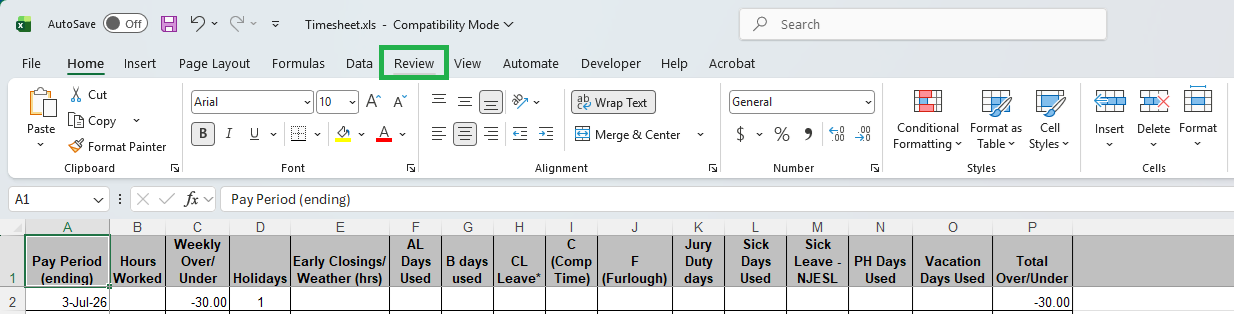
- Click the Review menu:
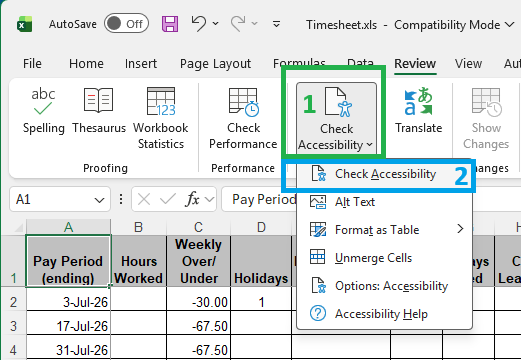
- On the Review ribbon, select Check Accessibility (see #1 below), then select the Check Accessibility dropdown menu item (see #2 below):
- Review the suggestions in the Accessibility Assistant sidebar to the right:
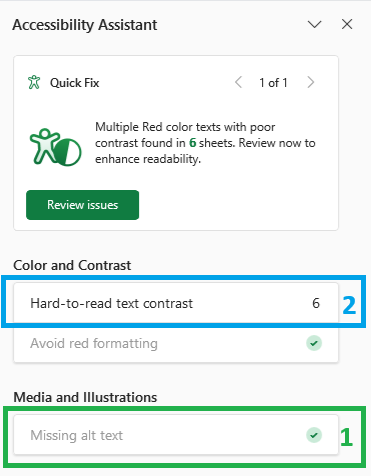
- Items with a green check (see #1 above) have passed the accessibility check and do not need to be addressed.
- Items with a number (see #2 above) represent accessibility issues that need to be addressed. Click on each item with a number and follow the suggestions to resolve the issue.
- To fix the issue Hard-to-read text contrast, follow these steps:
- Select one of the suggested colors for each instance of "Hard-to-read text contrast":

- Repeat the above step until all instances of hard-to-read text contrast have been resolved:

- Select one of the suggested colors for each instance of "Hard-to-read text contrast":
- When all issues have been resolved, the Accessibility Assistant will report "Looks good! No issues found."

- For additional remediation steps, please see Microsoft's "Accessibility best practices with Excel spreadsheets."
- Save the Excel spreadsheet.
- Upload the Excel spreadsheet to the same location on the website where the original spreadsheet was located, so that the new spreadsheet replaces the old one. If you are unsure how to upload the new spreadsheet, follow the steps for Uploading a file using JCE File Browser.