
Overview
This FAQ includes answers to questions related to remediating PDF files for accessibility. The basic procedure for remediating PDF files is here.
We will add to this FAQ as we identify solutions to commonly encountered issues related to PDF remediation.
Frequently Asked Questions
If you automatically tagged your PDF document using Acrobat, but you have been informed that there is still untagged content, try the following:
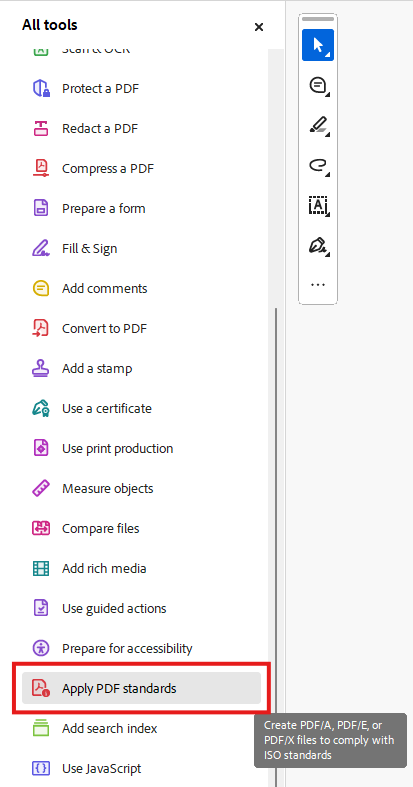
- Under “All tools” to the upper left click View More:

- Select Apply PDF Standards:
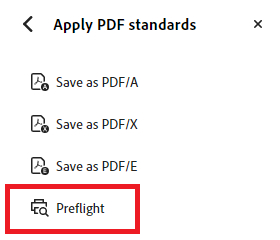
- Select Preflight:
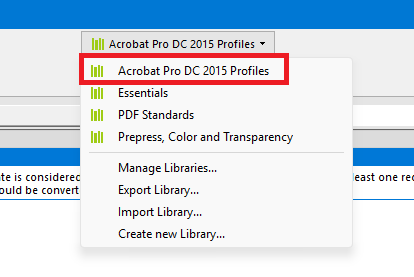
- In the dropdown menu at the top, select “Acrobat Pro DC 2015 Profiles:”
- Click the "wrench" icon:

- Search for Mark all non-structure elements as artifact (see #1 below) and double-click on it (see #2 below):

- Save the new PDF with the same name and in the same location:
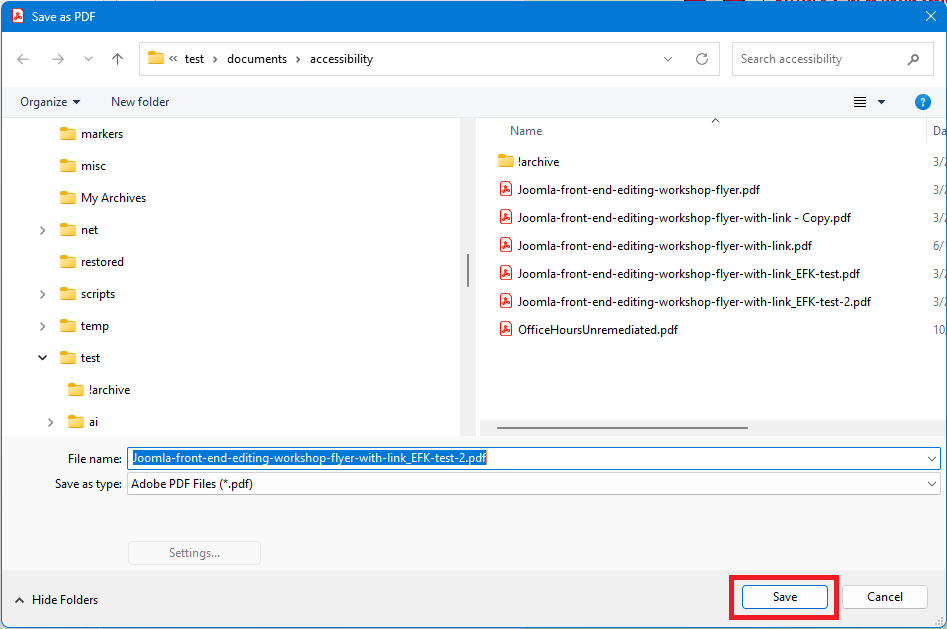
- When advised that the file already exists, click Yes to replace the existing file.
- Close the Preflight window to return to Acrobat.
- Click the arrow to the left of "Apply PDF standards" to return to the "All tools" menu:
CommonLook PDF Validator may report this issue for documents of 9 pages or more:
- Document contains 9 pages or more and doesn't define bookmarks.

This issue can be fixed by adding bookmarks to the document.
Procedure: Add Bookmarks to Long Documents
- Open your PDF file in Adobe Acrobat.
- Click the "Bookmarks" icon on the right-side menu in Acrobat:
- Select the location in the document where the first bookmark should be added. This will typically correspond to a heading within the document:

- Click the "Add a new bookmark" icon to the upper right of Acrobat:
- Enter a name for the bookmark, then type [Enter]. This will usually correspond to the heading you selected within the document:

- Repeat steps 3 through 5 above to add additional bookmarks to the document.
- Save the PDF document in Acrobat.
- Rescan the PDF document using CommonLook PDF Validator to ensure that the failure related to missing bookmarks no longer appears.
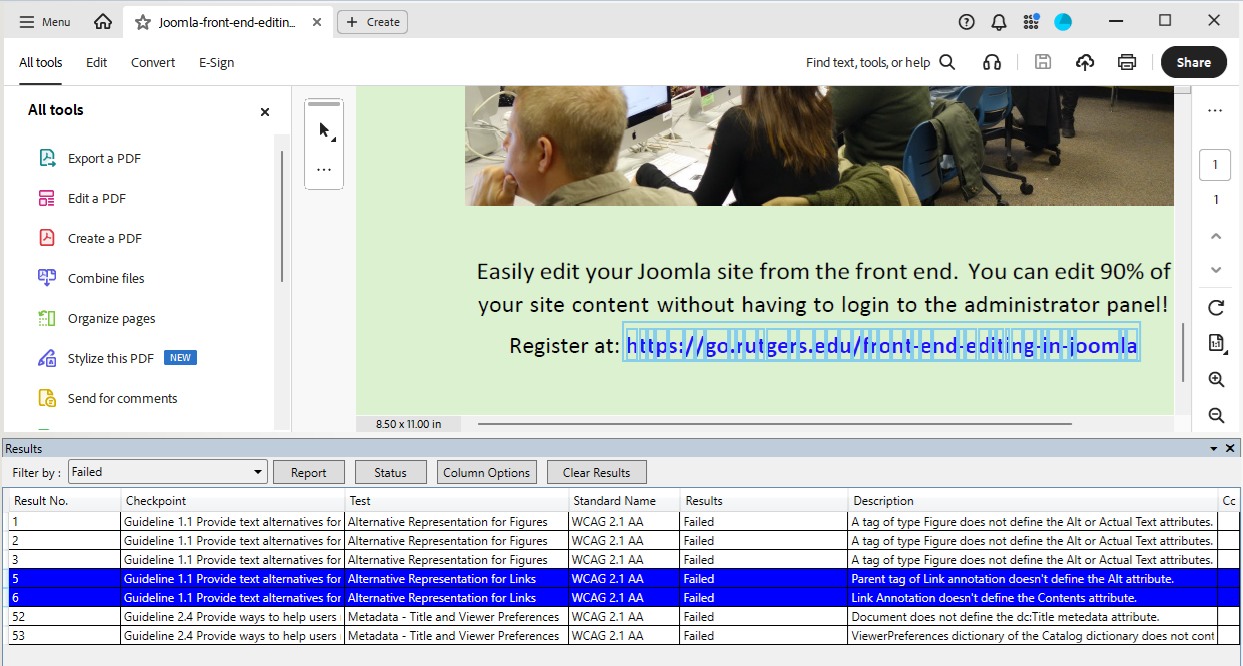
CommonLook PDF Validator may report these two issues for links within your document:
- Parent tag of Link annotation doesn't define the Alt attribute.
- Link Annotation doesn't define the Contents attribute.
Selecting those issues in the "Results" list will highlight the link that generated these failures:
Both failures can be resolved by adding alternate descriptions for links.
Procedure: Add Alternate Description for Links
- Open your PDF file in Adobe Acrobat.
- Click the "Accessibility Tags" icon on the right-side menu in Acrobat:

- Single-left-click on each tag in the "Accessibility Tags" list (see #1 below) until only the element containing the link is highlighted in the document (see #2 below):

- Under "Accessibility tags," click the arrow to expand the tag containing the link:

- if you don't see the <Link> tag right away, you may need to drill down further. For example, the <Link> might be nested within a <Reference> tag, which in turn may be nested within a <Span> tag.
- Right-click on the <Link> tag and select "Properties" from the pop-up menu:

- In the "Object Properties" dialog box, enter a meaningful description for the link target in the "Alternate Description for Links" field (see #1 below).
- Click the Close button (see #2 below):

- Repeat steps 3 through 8 above for any other links that generated failures in CommonLook PDF Validator.
- Save the PDF document in Acrobat.
- Rescan the PDF document using CommonLook PDF Validator to ensure that the failures related to links no longer appear.
CommonLook PDF Validator may report these two issues for tables within your document:
- Cell (x,y) does not have column headers associated with it.
- Scope attribute not specified for TH element.
Selecting those issues in the "Results" list will highlight the table elements that generated these failures:
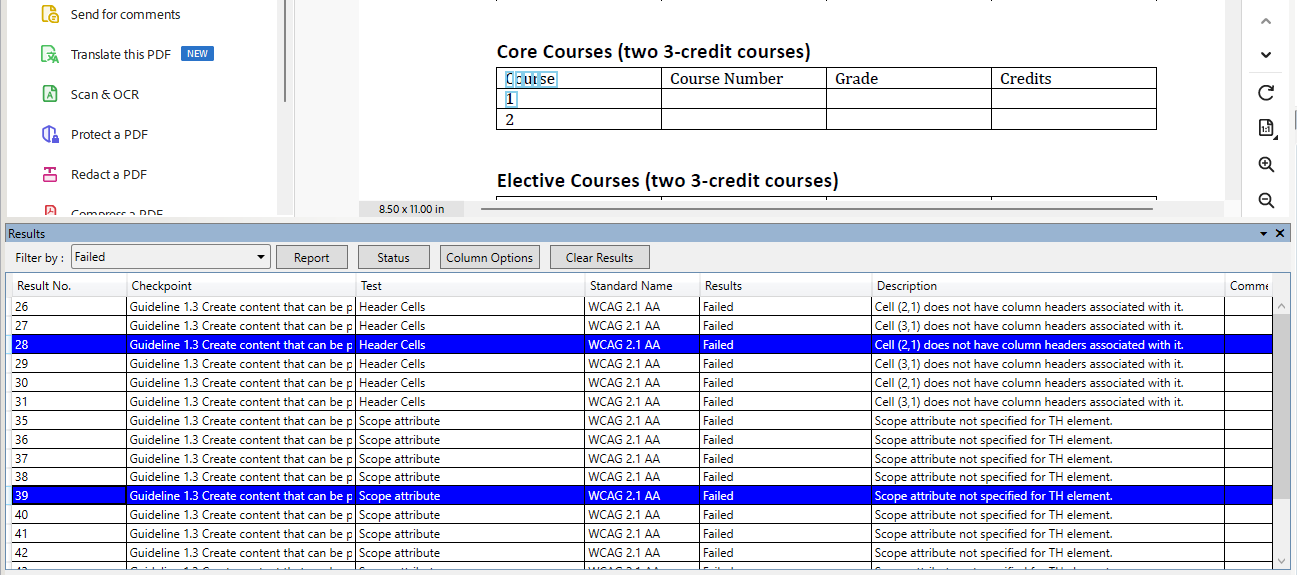
Both failures can be resolved by setting the appropriate scope for all header cells within your tables.
Procedure: Set scope for table header cells
- Open your PDF file in Adobe Acrobat.
- Under "All tools" to the left, select View more:
- Scroll down and select Prepare for accessibility:

- Under Prepare for accessibility, select Fix reading order:

- Click somewhere inside the table, then click the Table Editor button in the Reading Order dialog:

- Right-click inside each cell that should be marked up as a header cell, and select Table Cell Properties:

- Make sure Type is set to "Header Cell" (see #1 below)
- Set Scope to "Column" for a header cell at the top of a column, or to "Row" for a header cell at the beginning of a row (see #2 below)
- Click OK (see #3 below)

- Repeat the above steps for any other cells that should be marked up as table header cells.
- Save the PDF document in Acrobat.
- Rescan the PDF document using CommonLook PDF Validator to ensure that the failures related to links no longer appear.
CommonLook PDF Validator may report this issue for links within your document:
- "Link tag does not have a Link annotation as a direct child"

When this issue occurs, the easiest solution is to delete the <Link> tag and recreate the link.
Procedure: Deleting and recreating link tags
- Click the "Accessibility Tags" icon on the right-side menu in Acrobat:
- Single-left-click on each tag in the "Accessibility Tags" list until only the element containing the link is highlighted in the document:

- Under "Accessibility tags," click the arrow to expand the tag containing the link:
- if you don't see the <Link> tag right away, you may need to drill down further. For example, the <Link> might be nested within a <Reference> tag, which in turn may be nested within a <Span> tag:

- Right-click the <Link> tag and select "Delete Tag" from the popup window:

- Highlight the linked text and right-click on it, then select "Create Link:"
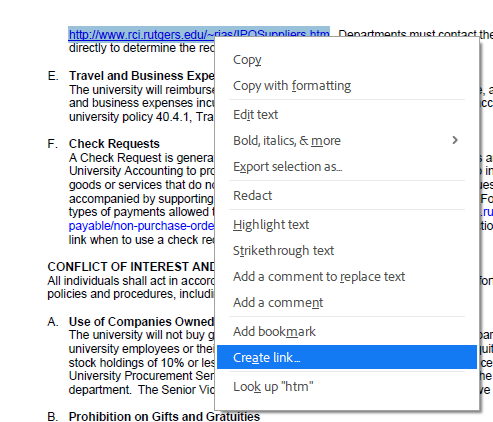
- For "Link Action" select "Open a web page", then click Next:

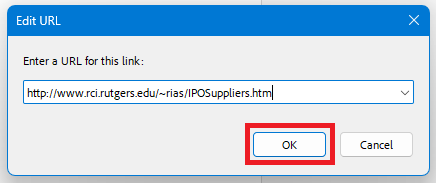
- Enter the URL for the link and click OK:
- Right click the new <Link> tag and select "Properties" from the popup window:

- In the "Object Properties" dialog box, enter a meaningful description for the link target in the "Alternate Description for Links" field (see #1 below).
- Click the Close button (see #2 below):
- Save the PDF document in Acrobat.
- Rescan the PDF document using CommonLook PDF Validator to ensure that the failures related to links no longer appear.
When you run a "Check for accessibility" in Acrobat, you may see this issue in the Accessibility Checker sidebar:
"Tagged annotations – Failed"
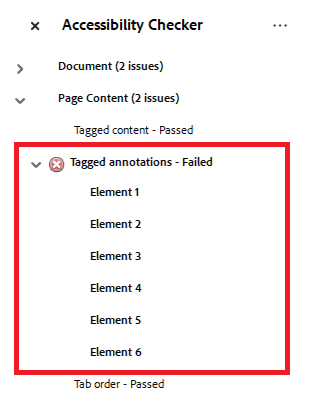
These issues can be resolved by finding the untagged annotations and tagging them appropriately.
Procedure: Finding and tagging unmarked annotations
- Click the "Accessibility Tags" icon on the right-side menu in Acrobat:
- Click the "Options" icon to the right of "Accessibility tags:"

- Select Find from the Accessibility Options menu:

- In the Find Element dialog, change the "Find" selection to "Unmarked Annotations" (see #1 below) and select Search Document (see #2 below). Then click Find (see #3 below):
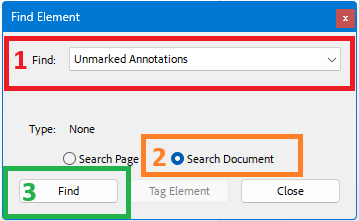
- For each element found, click Tag Element:

- In the New Tag dialog, select the "Type" list option that best matches the element that is highlighted on the current page:

If unsure which "Type" option to select, follow these guidelines:
- For an entire page, select "Division"
- For an image, select "Figure"
- For a link, select "Link"
- For a section of the page larger than a paragraph, select "Section"
- For a line of text smaller than a paragraph, select "Span"
- After making a selection for "Type:" click the OK button:

- Repeat steps (5), (6), and (7) above to tag any remaining elements.
- When all elements have been tagged, click OK at the message Find Completed:

- After all elements have been found and tagged, click Close at the Find Element dialog:
