
Email Client Configuration
Change Thunderbird to OAuth2
In an effort to enhance the security of the mail system, Microsoft, like most major e-mail providers, is making a change. Rutgers is activating this change early so we can deal with any problems that arise before Microsoft makes the change irreversible. If you use Thunderbird to access your Rutgers Connect email account, then it may be setup with the old authentication settings that Microsoft will be retiring in the coming months. To keep Thunderbird working, a minor setting needs to be changed in your Thunderbird account settings.
To switch Thunderbird to OAuth2 authentication:
- Make sure you are running the latest version of Thunderbird (version 91.3 as of this writing). To check for updates in Thunderbird, click on the three-horizontal line (hamburger) menu button at the top right, then select “Help” and then “About Thunderbird”. Thunderbird will notify you if there are any updates available. If Thunderbird on your computer is significantly out of date, then it may require checking for updates several times until you get the “Thunderbird is up to date” message. Alternatively, you can always download the installer for the latest version of Thunderbird at https://www.thunderbird.net/.
- In Thunderbird, click on the three-horizontal line (hamburger) menu button at the top right, then click on “Account Settings”.

- In the Account Settings tab, click on “Server Settings” underneath your Rutgers Connect account in the left side column and change “Authentication method” to “OAuth2”.

- While still in the Account Settings tab, click on “Outgoing Server (SMTP)”, then select the entry for “smtp.office365.com” and then click on the “Edit..” button.

- In the SMTP Server pop-up window, change “Authentication method” to “OAuth2”, then click OK.
- After making these changes you will need to re-login to your Rutgers Connect account in Thunderbird. A pop-up window like the one below will appear. Sign in with your Rutgers Connect email address and NetID password. You will also be prompted to authenticate with Duo when signing in. After you have signed in and approved the sign in with Duo, then Thunderbird is now setup with OAuth2 authentication.
Please note that at this time the latest version of Thunderbird does not support shared accounts when configured with OAuth2 authentication. It is unknown if Thunderbird will support this in a future update. To access a shared account please use either the Rutgers Connect website, https://connect.rutgers.edu, or the Outlook desktop app. Shared accounts can also be accessed using the Outlook mobile app.
Configuring Alpine
Configuration settings for Alpine
inbox-path = {outlook.office365.com:993/ssl/user=}Inbox
smtp-server = smtp.office365.com:587/tls/user=
folder-collections = "RU Connect" {outlook.office365.com:993/ssl/user=}[]
default-fcc = {outlook.office365.com:993/ssl/user=}Sent Items
default-saved-msg-folder = {outlook.office365.com:993/ssl/user=}Archive
trash-folder = {outlook.office365.com:993/ssl/user=}Deleted Items
user-domain = DEPARTMENT.rutgers.edu
If you want to save drafts on the server, set
postponed-folder = {outlook.office365.com:993/ssl/user=}Drafts
Note: This will cause alpine to ask you if you want to continue postponed message every time you compose a message.
Email Client Configuration
Basic email client configuration:
- Thunderbird (Windows and Mac)
- Apple Mail and Calendar
- Outlook 2016 for PC
- Outlook 2016 for Mac
- Android
- iOS
- Windows Phone
- Alpine (not recommended)
Advanced configuration:
How to delete attachments from messages using Thunderbird
If you need help following these steps, please submit a REQUEST with "Thunderbird Deleting Attachments" in the Brief Description field.
In the images that follow, the username and account information of an IT employee was used for demonstration purposes. Please replace these entries with your individual information where appropriate.
This documentation shows how to Delete Attachments from Messages.
Regarding attachment deletions.... This is possible but not with the current version of the Zimbra webmail client. You will need to use Thunderbird, if only for this one type of operation.
If you've previously run our copy of Thunderbird from the Novell-delivered applications window, there will be an icon there that says "SAS E-mail." Double-clicking that will launch Thunderbird. If you've not run this before, you will see an icon (maybe two) that says "SAS E-mail Installer." Double-clicking that will automatically configure your Thunderbird profile to use our server. Afterwards, you can click View->Refresh in the Novell window to display the regular "SAS E-Mail" icon to use for launching Thunderbird.
Once in Thunderbird, you can delete attachments by right-clicking on the attachment icon that appears at the bottom of a message containing an attachment. One of the right-click options will say "Delete...." After you've deleted the attachment, the appearance of the attachment icon will change, and the description will now say "Deleted: ." See the screen shot below to see how this will look in Zimbra.
I recommend performing the attachment deletion from the preview pane. That is, rather than double clicking a message to view it in its own window, just click on the message *once* so that you can see a preview of the message and its attachment icon in the lower right pane. Then right-click on the attachment icon that's visible in there and choose the Delete... function. For some reason, using this function in the preview pane seems to cause less confusion.
Note also that Thunderbird has the ability to let you sort messages by size. (See here for instructions). Taking advantage of this feature would help you find the messages with the largest attachments first, so you'd get the most bang for your buck.
Right Click on the document icon on the bottom of the screen
After you delete the attachment, it will show as DELETED
One thing to note is that when you do this, it changes the date of the message, so it will then appear as if it came in today
If you then view the message from the Zimbra Web interface, you will see it marked as deleted there too
How to find space-wasting messages using Thunderbird
Target the Largest Messages First
If you need help following these steps, please submit a REQUEST with "Thunderbird Size Settings" in the Brief Description field.
In the images that follow, the username and account information of an IT employee was used for demonstration purposes. Please replace these entries with your individual information where appropriate.
This documentation shows how to configure Thunderbird to display Message Sizes.
The main display in Thunderbird shows all of your mail messages.
It gives you the ability to sort by several different things.
You can sort by Subject, by Sender, and by Date.
You can also sort by Size, but this may require a little configuring...

Setup:
Click on the small box on the far right of the screen.
Select the Size option to display an extra column showing the Size of each message.
Thunderbird Main Screen showing Size:
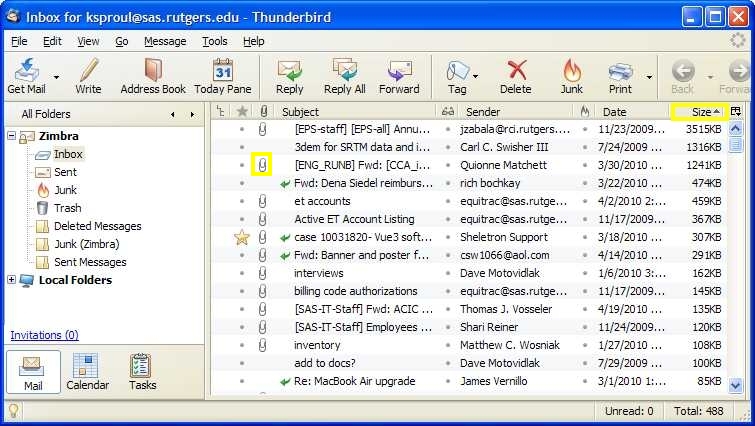
Click the Size column header to sort messages by size. Clicking it again will reverse the sort order.
If the little arrow points UP, it will show the largest messages at the TOP of the list.
If it points DOWN, it will show the largest messages at the BOTTOM of the list.
Use the sorted list to find very large messages and decide which ones you can delete.
Repeat this operation on other folders like Sent to quickly find the messages occupying most space.
To fully reclaim mailbox space, empty your Trash folder (File->Empty Trash) and compact your folders (File->Compact Folders).