
1. Log into the copier with your PIN (if you don’t know your PIN, please submit an SAS Workorder).
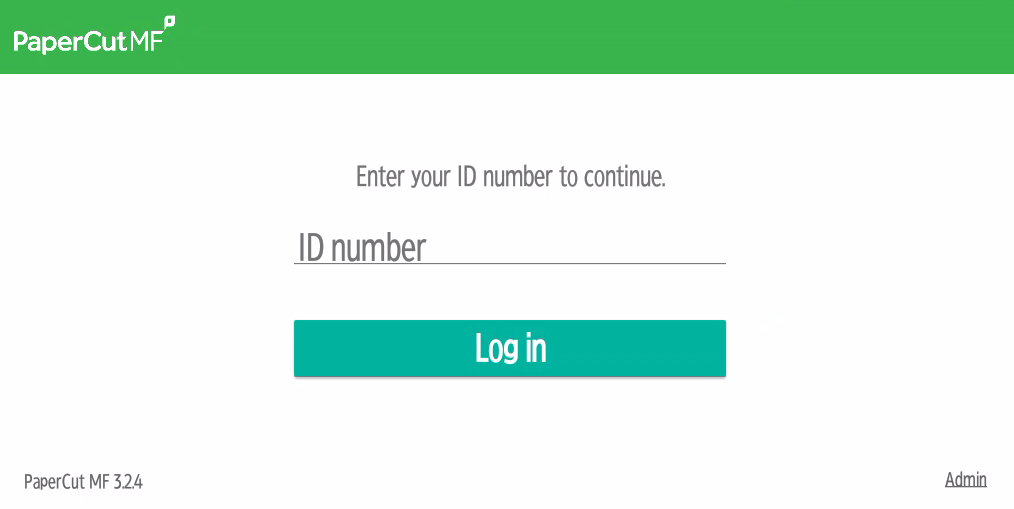
2. On the next screen, click “Scan.”

3. The following screen will appear. Click on “Scan to OneDrive.”
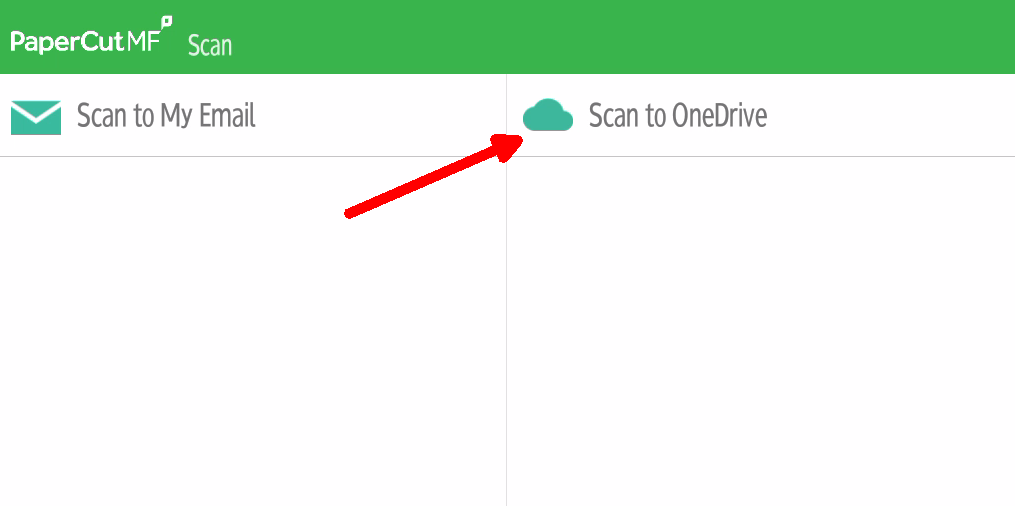
4. If you don’t need to change default settings, just click “Start Scanning.”
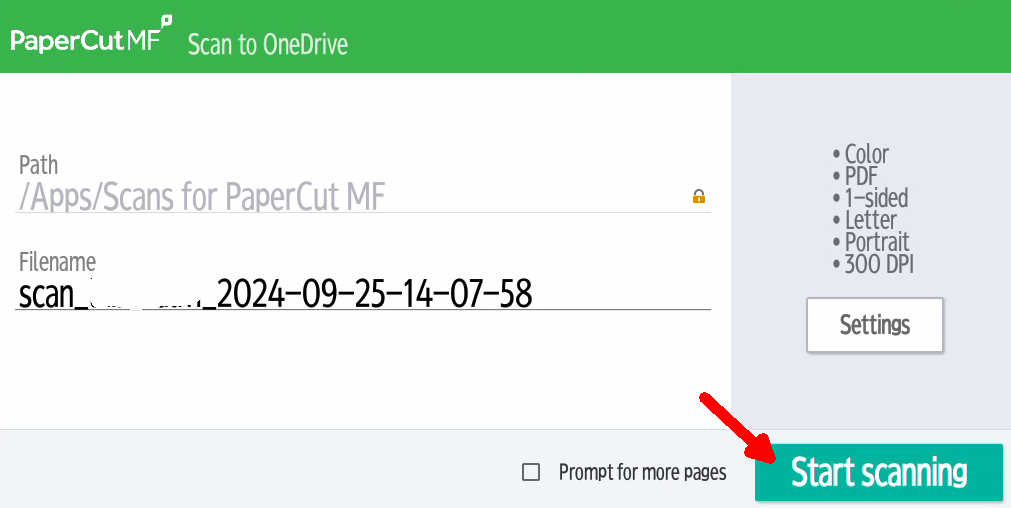
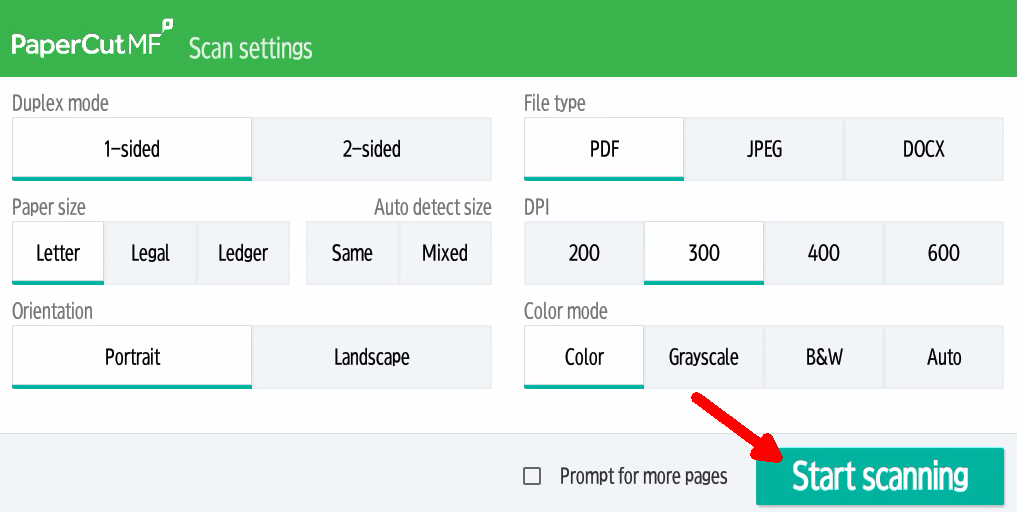
5. If you need to change any default settings, click “Settings.” When you’re done changing settings, click “Start scanning.”

 NOTE: The first time you scan to OneDrive, you will receive an email with the subject line: “Authorize Scans for PaperCut MF to save to your OneDrive for Business.” Follow the directions to authorize. This is only required the first time you scan. To access OneDrive, go to connect.rutgers.edu. Once you’re logged in, click the Apps icon in the upper left corner and then select OneDrive:
Your scans will be located in the OneDrive/Apps/Scans for PaperCut MF directory.